Vendor mapping
To automate the creation of purchase documents starting from the received XML files, the app provides a set of mapping rules that allow automatically resolving the vendor, the accounts, the items and the VAT posting groups of the lines. This page describes all the available configurations; their use in the process is described in the Purchases page.
The pages described below are accessible from the actions of the Electronic Document Setup page.
Vendor groups
Through the Setup Vendor Groups action it is possible to create groups and assign them to specific vendors, directly from their card, so that the same mapping settings can be shared among multiple vendors.
Mapping rules
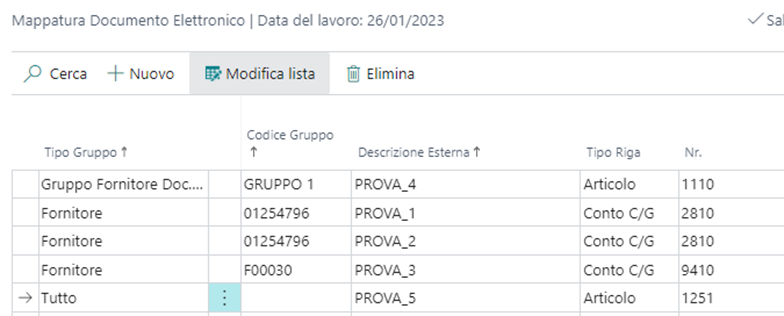
From the Setup Vendor Mappings page it is possible to configure the mapping rules for the automatic creation of the purchase document lines, setting the accounts and the items to be used for the vendors:

Group Type:
El. Document Vendor Group: the rule is applied at group level, previously assigned to the vendors.
Vendor: the rule is specific for the single vendor.
All: the rule is used for all vendors.
Group Code: the group or the single vendor the rule applies to.
Default Value: if enabled, indicates that for the specific group or vendor the data of the line is the one to be used for the mapping in the absence of more specific rules.
External Description: the description to be used to map the content of the purchase document imported into the system. The description can be specified according to the Business Central filter logic, for example using the "*" wildcard.
Line Type: G/L account or item to be reported on the purchase document lines.
No.: code of the G/L account or of the item to be reported on the purchase document lines.
VAT Prod. Posting Group: VAT posting group to be reported on the purchase document lines.
VAT %: value to be mapped, corresponding to the AliquotaIVA tag of the XML file.
VAT Transaction Nature: value to be mapped, corresponding to the Natura tag of the XML file.
Mapping by VAT rate and nature
The last two fields of the list allow mapping all the lines having the same VAT rate and nature, reading this information from the DatiRiepilogo node (tags AliquotaIVA and Natura) of the XML file. This way, all the lines of the imported purchase document having a specific combination of rate and nature are grouped into a single line on the document created in Business Central.
Note: in this logic the External Description field must be populated with the reference VAT code, meaning the value must match the one reported in the VAT Prod. Posting Group field.
Account for VAT grouping
On a line configured as Default Value it is possible to enable the Use for VAT Grouping field, to specify the default account to be assigned to the G/L Account No. for Grouping field of the electronic document preview of the vendor. The use of the grouping is described in the Purchases page.
Vendor items mapping
By enabling the Transcode Vendor Items field in the Electronic Document Setup, during the mapping of the electronic document preview lines the system tries to automatically resolve the line item starting from the item code communicated by the vendor in the document (tag CodiceValore of the CodiceArticolo section), if present.
The search is performed on the Item References of type Vendor registered for the vendor of the document and, if no match is found, by comparing the code directly with the Business Central item number. If an item is found, the line is mapped with Type = Item and the related No.; otherwise the standard mapping based on the Setup Vendor Mappings rules remains valid.
Default line type
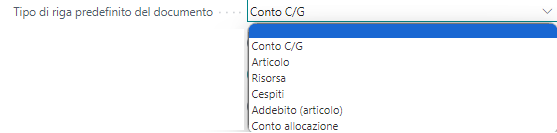
In the Purchases & Payables Setup, through the Document Default Line Type field, it is possible to specify the default value used to map the Type field in the electronic document preview lines, when no other mapping with the account detail is available.
Default VAT posting group
In the VAT Posting Setup page, the Default Vendor El. Document Value flag is used to map the VAT posting group to be reported in the electronic document preview lines. Based on the VAT rate and the nature present in the preview, and on the business posting group of the vendor, the combination having the check mark for the specific rate is identified, and the related VAT posting group is inserted in the line.
Note: for the same rate, nature and VAT business posting group only one default value can be set.

Suggest vendor mapping
Once the basic configurations are completed, it is possible to launch a function through which the system suggests mappings between the vendors and the related G/L accounts, based on the historical entries. The mappings can be verified manually and, if approved, moved into the vendor mapping rules, so that during the processing of the electronic documents the G/L account configured for the vendor is automatically suggested.
The suggestion is launched from the Setup Vendor Mappings page using the Suggest Vendor Mapping action: the accounts to be configured for each specific vendor are suggested, with the possibility of filtering the analysis period (for example only the last year) and of excluding specific accounts (for example accrued invoices). Once the filters are set and the report is launched, in the analysis page a line is created for each vendor for which a suggestion is available:

The available options for the Suggestion Action field are:
Create: creates a default mapping based on the analysis.
Update: it is suggested to update the currently configured mapping (the current account suggested for replacement is also shown).
Delete: the current mapping does not match the data and its deletion is suggested.
The page can be manipulated, for example filtering and deleting some lines. To confirm the suggested mappings, select the records (even massively) and use the Apply Action function.

Mapping confidence
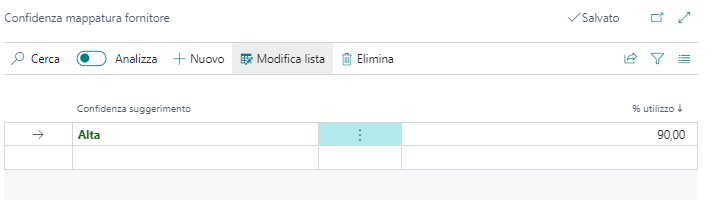
From the Setup Vendor Mapping Confidence page it is possible to specify above which usage threshold of an account, in percentage, the account should be suggested, with the related confidence levels (high, medium, low).
The Suggestion Confidence field has no impact on the vendor mapping logic and is used for informational purposes only in the analysis page.
Withholding mapping
When creating a vendor from the electronic document preview it is possible to map and automatically assign the correct withholding code.
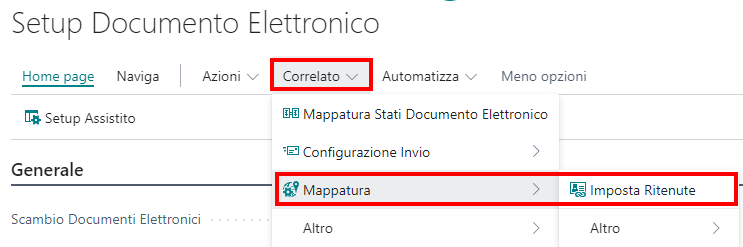
From the Electronic Document Setup page, selecting the Mapping action and then Set Withholding Codes, the withholding mapping page is opened.
The mapping is performed with the 3 values required as mandatory in the XML file when an invoice with withholding tax is present:
TipoRitenuta: to be entered in the Code field.
CausalePagamento: to be entered in the 770 Code field.
AliquotaRitenuta: to be entered in the Withholding % field.
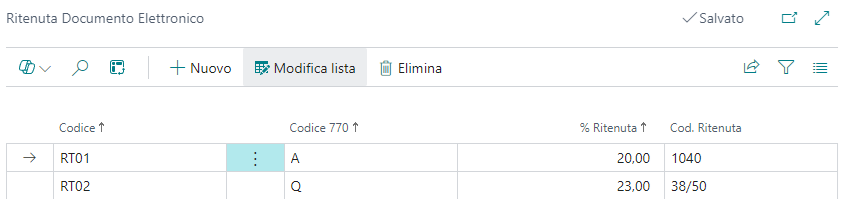
In the Withholding Code field, enter the withholding code that will be assigned in the vendor card upon creation.