Purchases
The purchase management process consists of the following steps:
Sending from Business Central of a request to retrieve the purchase documents received from the vendors. The call requests only the documents received since the last successful request.
The received data related to invoices and credit memos is managed with the creation of an Electronic Document Staging entry for each document.
The reading of the single XML files is performed with the creation of an Electronic Document Preview, showing the received document in a structured form (header and lines).
Based on the data of the preview, with manual integration if needed, the vendor document is created.
Upon posting of the vendor document, the electronic document preview is closed and the posting number is communicated to the preservation system.
Receiving the documents
The procedure, scheduled through the job queues, downloads into Business Central the documents sent by the vendors and collected in the dedicated section of the portal. As for the sales flow, the following operations are performed in a single step:
Creation of an Interface for the reception of the documents from the Sistema di Interscambio.
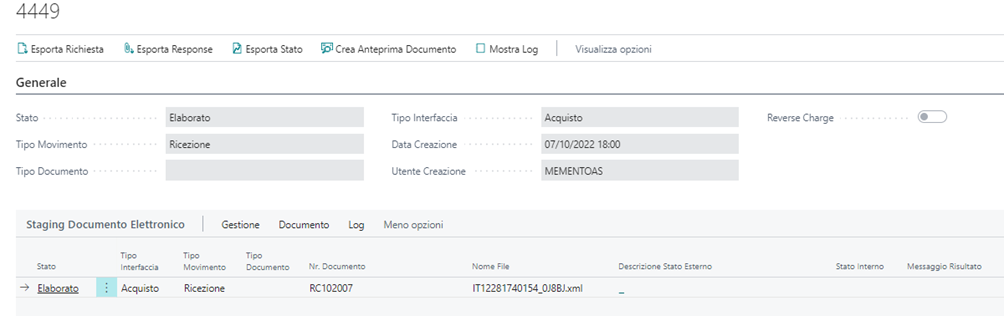
Creation of an entry in the Electronic Document Staging page for the vendor documents request, with a line for each document downloaded from the portal:
In addition, from the Electronic Document Interface page, using the Import from File action, it is possible to manually import one or more XML files:

For massive imports it is sufficient to place the XML files in a compressed folder (ZIP) and proceed with the import through the same action.
Electronic Document Preview
In the Electronic Document Staging page it is possible to view the loaded data and manually proceed with the creation of an Electronic Document Preview; if the Create Preview Automatically field is enabled in the setup, the preview is created automatically.
This step precedes the actual creation of the draft purchase document within the system: from the page it is possible to view the data that the system managed to map based on the configured setups (see the Vendor mapping page) and complete it manually if needed, before proceeding with the creation of the document.
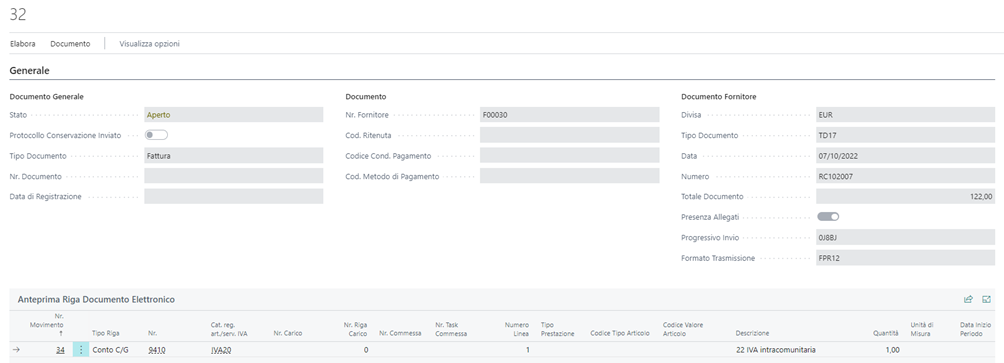
The General tab contains the main fields, which can be modified manually. The data related to payment terms and payment method is read from the electronic document, when unambiguously matching a value available in Business Central, unless the Always Use Vendor Payment field is enabled, in which case it is taken from the vendor card.
The Dimensions tab contains the global dimensions that can be assigned to the document:

In the lines it is necessary to specify the line type (e.g. G/L Account) and the related value (e.g. the account number), mirroring what happens in Business Central documents. It is also possible to specify some additional information, such as:
The job code and the related task.
The dimensions:

- The direct link with a posted receipt, if any.
The line detail data is mapped, where possible, according to the configured rules; it must in any case be verified and completed manually by the operator if needed.
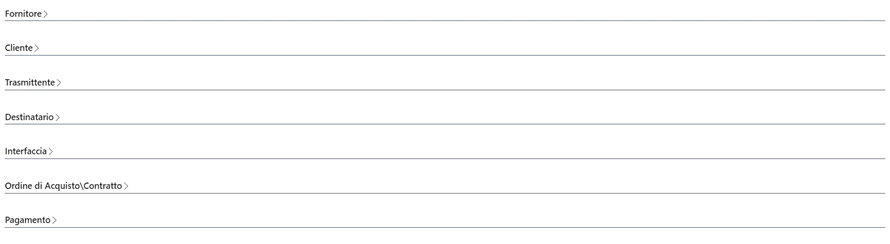
Finally, the page contains a set of non editable tabs displaying the other data present in the transmitted file:
Through the Dati Riepilogo action, available on the electronic document preview, it is possible to consult the summary data of the document (DatiRiepilogo section), meaning the VAT summary with taxable amount, tax and rounding, if any, for each combination of rate and nature.
Similarly, through the Causale action it is possible to consult the causali of the document (Causale section), fully reported even when the file contains multiple occurrences.
Vendor attachments
Clicking on the Show Attachments action, available in the toolbar, it is possible to view the attachment inserted by the vendor in the exchanged file, if any (for example the invoice in PDF format).
By enabling the Load Attach. on Purch. Doc. field in the Electronic Document Setup, the attachments embedded in the file (Allegati section) are also automatically saved as standard Document Attachments on the electronic document preview, when the file is read; they remain available in the Attachments factbox of the preview, where additional ones can also be added manually.
Upon creation of the purchase document, the attachments present on the preview, both those read from the file and those added manually, are copied as Document Attachments onto the purchase document and follow it during posting, remaining available on the posted purchase invoice or credit memo.
Printing the electronic document
It is always possible to view the data according to the standard layout provided by the Italian Revenue Agency or by Assosoftware, through the Print with Stylesheet and Print with Stylesheet Assosoftware functions:

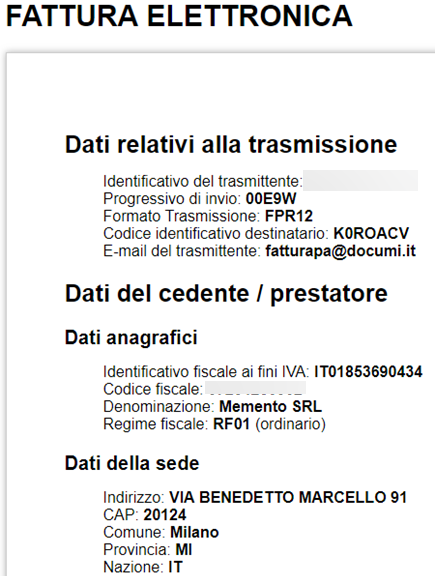
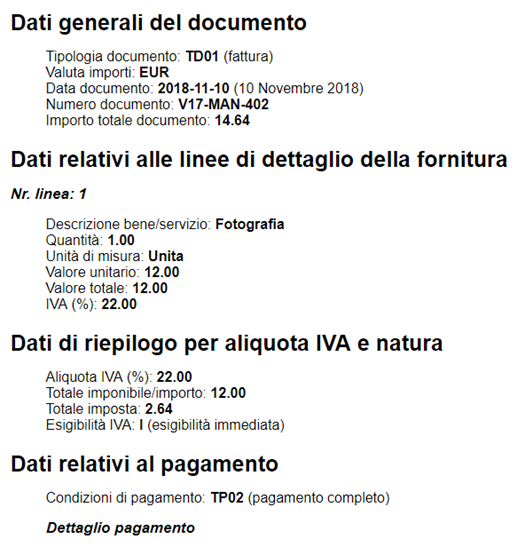
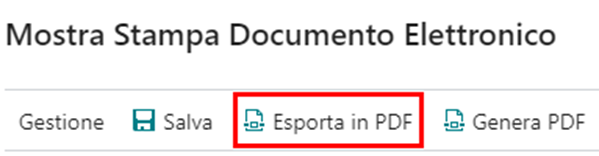
The print of the electronic document preview can also be saved in PDF format through the Export as PDF function, producing a static image in PDF format:
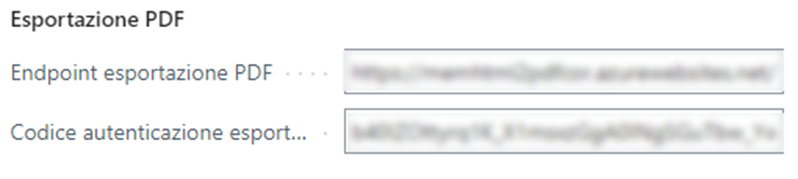
The Generate PDF function creates an actual PDF file instead, but requires an Azure subscription since it uses an external Azure Function to perform the print; the functionality is activated by populating the fields of the PDF Export group in the Electronic Document Setup page:
It is also possible to export in PDF format from the electronic document previews list, through the dedicated function:

Selecting multiple entries in the page, it is also possible to massively print the documents: in this case a ZIP folder is created containing the PDF files generated for the single documents (the created files are named after the imported XML file).
Finally, in the purchase documents, both posted and unposted, it is possible to launch the print of the electronic document preview to view the document received from the vendor through the dedicated stylesheet.
Vendor creation
The vendor is mapped based on the VAT registration number or fiscal code.
If the vendor is not available in the system, it is possible to launch the Create Vendor function, available in the toolbar:

The creation generates a vendor card reporting the main values from the electronic document, which must in any case be completed manually, optionally with some fixed fields configurable through the related model (Default Vendor Model setup field).
Alternatively, by enabling the Create Vendor Automatically setup field, the vendor card is created automatically during the preview creation if missing.
During the creation of the electronic document preview the system also verifies whether the IBAN is among those registered for the vendor: if it does not exist and it is populated in the preview, the IBAN value is highlighted in red and, using the Create Vendor Bank Account action, it is possible to create the bank account associated with the vendor.

When an invoice with withholding tax is received, it is possible to map and automatically assign the correct withholding code to the vendor upon its creation, through the configuration described in the Vendor mapping page.
Document creation
To create the document it is possible to launch the Create Document function, which generates a draft document with the previously entered header and line data; the document can then be completed and posted according to the standard Business Central process:

If the line data (type and account or item code) has not been mapped, the lines are not created in the purchase document.
After the creation of the document, the status of the preview changes from Open to Invoice Created:
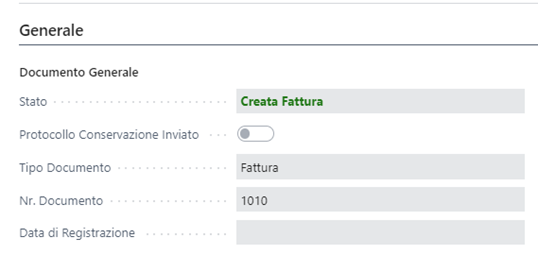
After posting, the data related to the assigned posting number and posting date is updated; the status is set to Invoice Posted, indicating that the process is completed for that document:
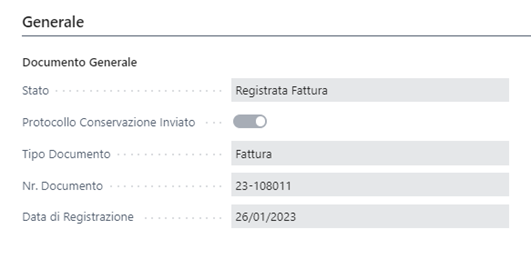
The posting of the document generates a request to save the posting number on the preservation system.
Automatic additional lines
In addition to the lines mapped from the electronic document, during the creation of the document the system automatically generates the additional lines present in the XML file, if any, such as stamp duty, overcharge, rounding and social security contribution.
For the social security contribution (DatiCassaPrevidenziale section), a G/L Account line is created for each section present in the document, using the account configured in the Social Security G/L Account field of the Electronic Document Setup. The VAT posting group of the line is determined based on the VAT rate and the nature of the section, filtering the VAT Posting Setup page according to the same logic used for the line mapping (Default Vendor El. Document Value flag); if no match is found, the default VAT posting group of the account is used.
The social security contribution data read from the file can be consulted in the electronic document preview, in the dedicated Social Security tab, visible only when the document contains such data.
The account and the dimensions used for the additional lines can be derived from the last line of the document instead of the setup, by enabling respectively the Add. Line Acc. from Doc. and Add. Line Dim. from Doc. fields of the Electronic Document Setup.
Automatic amounts reconciliation
The detail data of the electronic invoices may not exactly match the total, due to the population rules of the electronic invoices. To prevent these differences from having to be corrected manually before posting, it is possible to activate functionalities allowing an automatic reconciliation of the amounts at the end of the document creation. The system automatically compares the totals of the purchase document with what is declared by the vendor (the Totale Documento of the header and the VAT summary of the DatiRiepilogo) and, if the difference falls within the configured tolerances, it manages it automatically.
The behavior is governed by two fields of the Electronic Document Setup, both in the Purchases Options tab:
VAT Difference Tolerance: maximum difference, in absolute value, that the system can absorb acting on the VAT.
Rounding Amount Tolerance: maximum difference, in absolute value, that the system can absorb adding a rounding line.
Setting a tolerance to zero disables the related automation.
VAT difference: the check is performed per single VAT rate. For each section of the DatiRiepilogo the declared tax is compared with the VAT calculated for the same rate; if the difference of a rate falls within the VAT Difference Tolerance, the system sets the VAT Difference on the line of that rate, without adding lines. If even a single rate presents a difference above the tolerance (or a declared rate is not present on the document), the entire VAT correction is cancelled, since it is a real discrepancy and not a simple rounding. This mechanism requires the Allow VAT Difference field to be enabled in the Purchases & Payables Setup and the Max. VAT Difference Allowed field in the General Ledger Setup to be greater than or equal to the configured tolerance; otherwise the VAT correction is not applied.
Taxable amount or total difference: the residual difference between the Totale Documento and the total of the purchase document, if within the Rounding Amount Tolerance, is absorbed by inserting a G/L Account rounding line. The account used is the rounding account of the vendor posting group.
On the automatically created rounding lines, both the one generated by the reconciliation and the line deriving from the Arrotondamento section of the electronic document, it is possible to force a specific VAT product posting group (for example a 0% VAT code) by populating the Rounding VAT Prod. Posting Group field of the Electronic Document Setup; if the field is empty, the default VAT posting group of the rounding account is kept.
Similarly to the other additional lines, if the Add. Line Dim. from Doc. field is enabled in the setup, the rounding line inherits the dimensions from the last line of the document.
If the difference exceeds the tolerance, the system performs no correction and leaves the document to the operator; the standard check on the correspondence between detail and total in any case prevents a posting with a wrong amount.
Header only creation
If the entire document should not be mapped, or the document should be posted in a single cost or item line (instead of the several lines sent by the vendor), it is possible to use the Create Only Header action to create the draft document with the header data only.
Grouped documents creation
When documents with many lines of the same type are received, it is possible to create the invoice on a single account without having to specify it on all the lines. The account is specified in the G/L Account No. for Grouping header field: if populated, using the Create Only Header action a document is created reporting in the lines the grouping by VAT code, with the same account on all the lines.
In the vendor mapping rules it is possible to specify the default account to be assigned to the G/L Account No. for Grouping field for a vendor, as described in the Vendor mapping page.
Jobs management
When the jobs module is used in the system, during the loading of the document the system verifies whether the vendor specified the reference job in the IdDocumento or CodiceCommessaConvenzione field of the purchase order section; in that case the job is proposed. If the indication is at header level (without the line number), the job is repeated on all the lines. In any case it is possible to verify and manually modify the job and the related task from the electronic document preview.
Receipt linking
If the invoice is related to a purchase order previously entered in the system, it is possible to directly link the invoice with a previously posted receipt, accessing the Receipt No. field of the electronic document preview lines and selecting the desired receipt for the vendor; upon creation, the document is automatically linked to the receipt.
Receipts and invoices reconciliation
To simplify the process, a functionality is also available allowing the reconciliation, directly during the creation of the invoice, of the single quantities of one or more receipts with the invoice itself.
On the electronic document preview card, the Document Match action is available:

The action opens a card showing the receipts related to the specific vendor, with the related invoiceable quantities; for each line it is possible to indicate the quantity to be matched with the invoice being processed (Matched Quantity), or to match the whole line with the Completely Matched flag. The Reset Matches action removes all the matched quantities.
Above the receipt lines, the totals compare the vendor invoice with what is matched to the receipts:
- Document Amount, Reconciled Amount and Difference: the amount of the invoice, the amount of the matched quantities and the delta between them;
- Document Quantity, Reconciled Quantity and Difference Quantity: the same comparison in terms of quantity (only indicative when the lines use different units of measure).
The reconciled amount is calculated with the unit cost of the invoice: for each matched receipt line the system stores the net unit cost invoiced by the vendor for the same item (line amount divided by quantity, therefore including any line discount); if the item is not on the invoice, the net unit cost of the receipt line is used. The same unit cost becomes the Direct Unit Cost of the purchase invoice lines created from the receipts.
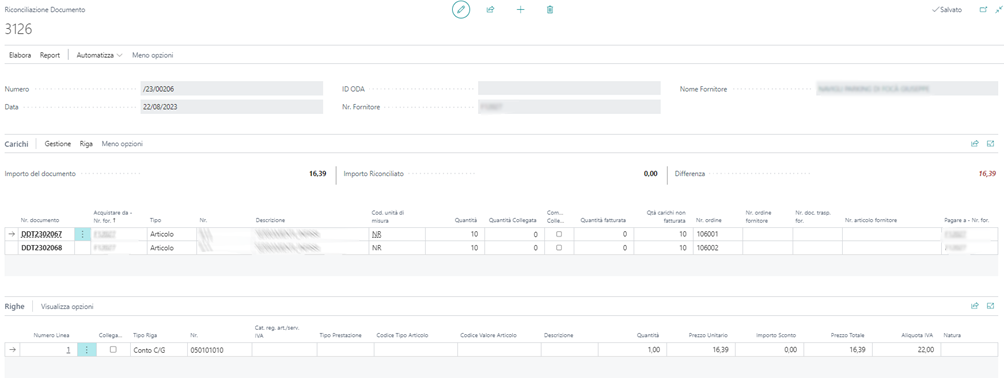
In the lines section, using the Matched flag, it is possible to indicate the electronic document lines to be included in the creation of the document: the invoice lines will report the quantities matched on the receipts and only the electronic document lines having the Matched flag (for example transport costs or other charges not present on the receipts). The Match All and Remove Match All actions set or remove the flag on all the lines. If no receipt quantity is matched, all the electronic document lines are created, regardless of the flag:

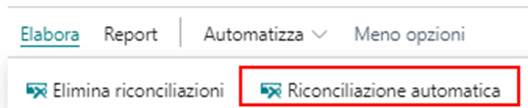
Among the functionalities available in the Document Match page, the Automatic Match action automatically reconciles receipts and invoice when the purchase order reference (ID ODA) is present in the electronic document of the vendor. The existing matches are deleted after confirmation; then:
- the electronic document lines with the same type, number and unit of measure are grouped and their quantities summed; only the lines with Type and No. populated are considered;
- the quantity of each item is distributed on the open receipt lines of that order for the same item (and the same unit of measure, when indicated on the electronic document line), starting from the oldest order lines, up to the quantity received and not yet invoiced of each receipt line.
If the invoiced quantity of an item cannot be fully covered, a message lists the items not fully matched, which can be completed manually.
The Show Differences action compares, item by item, the electronic document with the matched receipts and lists only the items with a difference, indicating the Difference Type:
- Quantity: the invoiced quantity differs from the matched quantity;
- Price: the net unit cost invoiced differs from the net unit cost of the receipts (differences below one cent on the line amount are ignored);
- Quantity and Price: both the previous differences;
- Not Matched: the item is on the invoice, but no receipt quantity is matched;
- Not Invoiced: a receipt quantity is matched for an item that is not on the invoice.
If there are no differences, a message is shown instead of the list.
Manual document linking
If a vendor document is created or posted directly in the system, without following the steps described above (the document having in any case been sent by the vendor in electronic format and therefore downloaded from the portal according to the described process), it is possible to manually link the electronic document preview entry with the directly created document (draft or posted) through the Link Existing Document function.
This way the process is correctly completed also for these types of posting, which would otherwise remain open in the Electronic Document Preview page.
In case of manual linking, it is also necessary to manually launch the preservation posting number sending functionality to complete the process.
Negative documents management
Vendors may send invoices with a negative total amount, typically in case of adjustments or utility bills. Business Central does not support the posting of documents with a negative total, therefore these documents must be managed as credit memos.
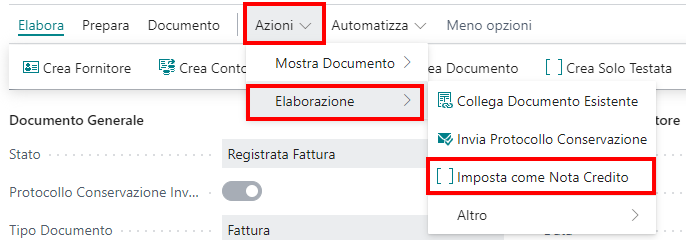
Their processing can be performed by converting the document into a credit memo through the dedicated Set as Credit Memo function on the electronic document preview:
Preservation posting number sending
A return flow from Business Central to the preservation portal is available, transmitting the posting number and posting date with which the document has been posted within the system.
The procedure is automatic and is performed by the dedicated job queue.
If the automatic sending is not successful, or a manual linking has been performed, it is possible to send it again through the dedicated functionality.