Getting started
To start using the app it is necessary to complete, in order, the steps described in this page. Once the path is completed, it will be possible to proceed with the detailed configurations described in the following sections.
1. Account activation

Using the app requires an active account, in the form of a paid subscription or a 30 day free trial. If the app has been activated directly by Memento, no further actions are required.
The activation process consists of sending an email to appsource@mementoas.com indicating the app to be activated and the following company information:
- Company name
- Company address
- Company email
- VAT registration no.
- Contact name
- Contact email
- Type of account (regular or free trial)
- Nr. of additional documents (if needed)
After the account has been activated, the access credentials (user name and password) will be sent by email. During the trial period it is also possible, upon explicit request, to send real documents to the SdI.
2. Permission sets
3 predefined permission sets are available for the most common scenarios:
- Electr. Invoicing read only: read only access to the features of the app.
- Electr. Invoicing Super user: complete access to all the features of the app, including the modification of the configurations.
- Electr. Invoicing users: complete access to all the features of the app, without the possibility of modifying the configurations.

It is recommended to configure user permissions right after the installation of the app: otherwise, errors related to missing permissions may occur.
3. Assisted setup
The assisted setup provides a guided configuration path of the main functionalities of the app, at the end of which it will be immediately possible to start using it to send and receive documents.
The assisted setup is available from the Electronic Document Setup page. By following the configuration path, the basic functionalities necessary to use the app will be set up.
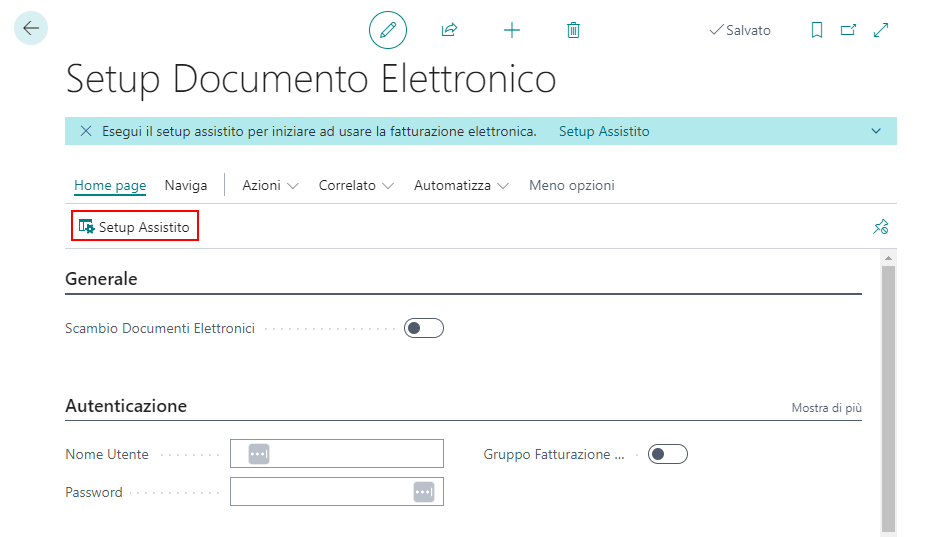
The details of the operations performed by the assisted setup and of all the available parameters are described in the Electronic Document Setup page.
4. First access to the YouDOX portal
After the account has been activated and the credentials received, it is necessary to log in to the YouDOX portal at https://e-invoicing.youdox.it/ using the provided credentials.
The first access to the portal requires the acceptance of the general terms and conditions and the designation of the company responsible for the preservation, to be specified in the appropriate fields.

5. Rejection notification emails
It is recommended to configure right away, on the YouDOX portal, a default email address to receive the rejection and error notifications coming from the SdI.
From the YouDOX portal, open the Settings section:
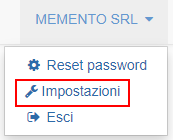
Enable both the sections related to rejected documents and documents with errors, specifying the recipient email address of the notifications:

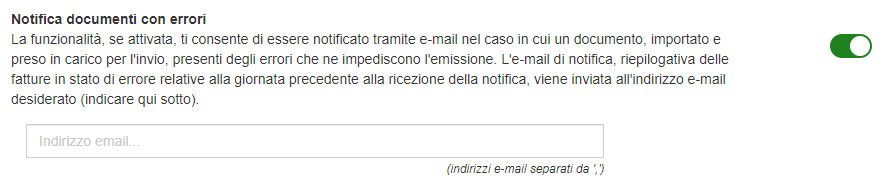
The notification is sent once a day and includes the list of the documents rejected or in error on the previous day. If multiple legal entities are active on a single account, the notification covers all the companies in a single email.
6. Registering the unique code in the Fatture e Corrispettivi portal
Registering the default unique code for receiving documents ensures their delivery even when the vendor makes an error entering the code.
The registration is carried out in the dedicated section of the Fatture e Corrispettivi portal of the Italian Revenue Agency, entering the unique code communicated during the activation. If the company is not yet registered on the portal, it is advisable to proceed with the registration; once access is obtained, the default unique code can be entered.
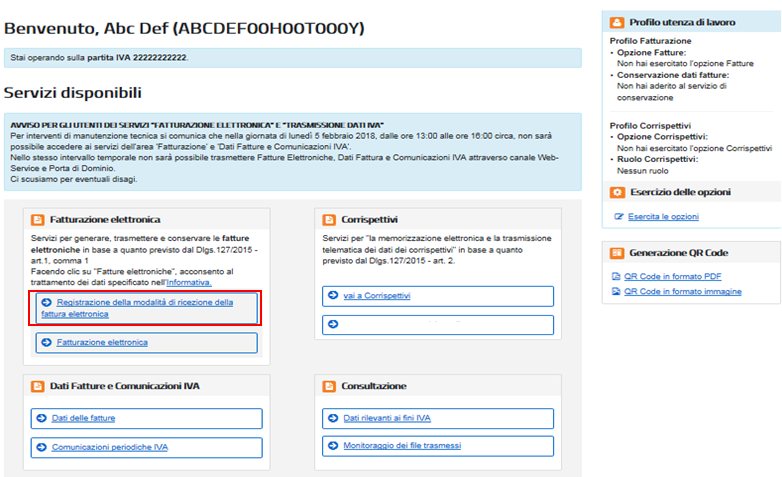
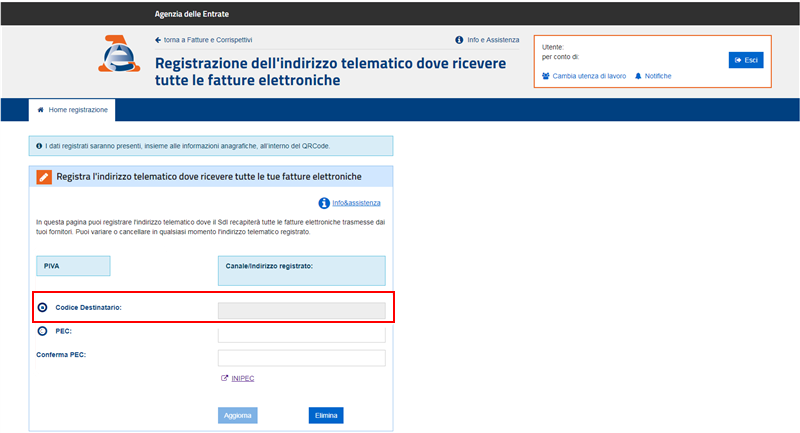
In addition to the above, it is in any case recommended to communicate the unique code to your vendors.
7. Preservation manual
Electronic documents in XML format are automatically preserved by the accredited intermediary; in general, for the management of the electronic preservation of documents, the company must draft a dedicated preservation manual.
If a preservation manual is not yet available within the company, it is possible to request the creation of a manual dedicated to electronic invoices. The service must be explicitly requested via email and is included in the app usage fee.
Support
If you need assistance or information regarding the account activation or the initial configuration, please write to support@mementoas.com.