Electronic Document Setup
The Electronic Document Setup page collects the general operating parameters of the app. This page is the complete reference of the available fields, grouped by tab as in the page, and of the related actions.

General
Electronic Documents Exchange: manages the general activation of the electronic documents management functionality.
Provider Type: indicates the provider used to exchange documents with the SdI. The default value is YouDox; additional providers may be available by installing the related dependent apps.
Authentication
The tab is visible when the configured provider is YouDox. The credentials to be used are provided during the activation of the service.
Username: indicates the user name to authenticate with.
Password: indicates the password to be used for the authentication.
Electronic Invoicing Group: to be activated when multiple companies (legal entities) share the same credentials on a single account. If enabled, the system filters the received documents and outcomes based on the VAT registration number and fiscal code of the current company.
Client ID: indicates the secret client id to be used for the authentication.
Base URL: indicates the base path for the calls towards the preservation and document exchange provider. Based on the configured path, the test or the production environment is used.
Formats
Invoice Doc. Format: indicates the format to be used for the export of sales invoices.
Credit Memo Doc. Format: indicates the format to be used for the export of sales credit memos.
The formats can be created automatically through the Create Document Formats action or through the assisted setup.
Service Formats
The tab is visible only if the Manage Service Documents field is enabled.
Serv. Invoice Doc. Format: indicates the format to be used for the export of service invoices.
Serv. Credit Memo Doc. Format: indicates the format to be used for the export of service credit memos.
Options
No. of Days to Send Documents: if populated, the documents are not sent immediately but only after the indicated number of days from the posting date has passed.
Sending Start Date: if populated, only the documents posted with a date greater than or equal to the configured one will have the electronic document status populated, allowing their sending.
ID SDI in Self Invoice: for internal self invoices for which a purchase invoice has been received from the SdI, inserts the SDI code of the document in the dedicated tag of the FattureCollegate section (otherwise the invoice number is reported).
Sales Options
Not Aggregate Documents: indicates how the produced documents are aggregated. The default configuration sends in a single call all of the documents being processed at a specific moment, for each document type; if the field is enabled, a separate call towards the preservation system is made for each single document.
Last Status Request: reports the last time the updated status of the sent documents was requested.
Attach Print in Document: if enabled, the system inserts as attachment the print of the document according to the layout defined for the document type (posted invoice print, credit memo print, etc.).
Attachment Type: identifies the format used to attach the print in the generated electronic file. The available options are ZIP and PDF.
Document Sent Cue Formula: the sent documents cue shows only the documents included in the selected period from the work date. For example, entering the value -6D, the Sent Sales Invoices / Credit Memos cues show the documents processed in the 6 days before the work date; entering 0D, only the documents processed on the current day are shown.
Manage Service Documents: if enabled, the management of service documents is activated, both in the setup page (Service Formats tab) and in the cues of the role center.
Send for All Countries: enables the sending for all countries, regardless of the configuration on the countries page.
Insert Shipment Details: if enabled, for each document line coming from a shipment, the shipment number is exported in the dedicated DDT section.
Export Jobs Tag: when the jobs module is used, allows exporting the job number of the sales document in the selected tag.
Set Order Number on Lines: if enabled, the customer order number of the document is repeated on all lines.
VAT Description Type: manages the insertion of the regulatory reference in the electronic documents (tag RiferimentoNormativo). The available options are:
Natura: regulatory reference inserted only when the VAT value is zero.
Split Payment: regulatory reference inserted both for standard operations and for split payment transactions.
All: regulatory reference reported in the electronic document for all operations.
Lines Description Type: manages the export of the description lines in the XML file. The available options are:
Standard: only the lines different from the Comment type are exported.
Detail: the Comment type lines are also exported, as separate detail lines, with the description retrieved from the related line.
Previous Line: the Comment type lines are also exported; their descriptions are appended to the description of the first preceding line to be actually exported. If the first line of the document is a Comment line, its description is appended to the description of the first line to be actually exported.
Note: the maximum number of characters exportable in XML on a single description line (tag Descrizione) is 250.
Empty Line Description: the standard allows posting documents with empty lines, but the electronic invoicing specifications require the description field to be mandatory. Any empty lines are transmitted inserting in the description of the electronic document the text configured in this field, to prevent rejections (for example a dash or the text "Additional Line").
Item No. Source: by default the GTIN, if populated, is exported in the sales invoices. Setting the field to the value No., the internal item number is exported instead (with type ARTICOLO).
Causale Source: if set to Work Description, in the exported document the Causale field is populated with the value entered in the Work Description field of the document. If set to Fixed Description, the Causale field is populated with the value entered in the following Fixed Causale Description field, useful for example to configure the CONAI text.
Fixed Causale Description: fixed description to be inserted in the causale of the document. If the field is populated and the Causale Source setup is set to Work Description, two causale tags are exported: one for the work description of the document and one for the fixed description.
Send Attached Documents: if enabled, the attachments loaded on the posted document are also included in the XML.
Sales Withholding
- Sales Withholding Code Field and Sales Withholding Amount Field: used to activate the export of active withholding taxes, if available in the environment.
Stamp Duty
Stamp Duty Amount: value of the virtual stamp duty to be considered for the creation of the document.
Stamp Duty Minimum Amount: if populated, the stamp duty is inserted only on documents with an amount higher than the specified minimum.
Stamp Duty Description: if populated, the configured description is reported in the causale of the XML.
The operation of the virtual stamp duty management is described in the Sales page.
Period
- Period Start Field and Period End Field: if populated with a field of the document lines, in the XML export the DataInizioPeriodo and DataFinePeriodo fields are populated with the corresponding values.
Purchases Options
Stamp G/L Account: the account number to be used for stamp duty amounts during the creation of the documents.
Overcharge G/L Account: the account number to be used for overcharge amounts during the creation of the documents.
Social Security G/L Account: the account number to be used for social security contribution amounts during the creation of the documents.
Rounding Amount Tolerance: maximum difference, in absolute value, within which, at the end of the creation of the purchase document, the system automatically absorbs the difference between the calculated total and the Totale Documento declared in the electronic document, inserting a rounding line. When set to zero, the automation is disabled.
VAT Difference Tolerance: maximum difference, in absolute value and evaluated per single VAT rate, within which the system automatically aligns the calculated VAT to the one declared in the DatiRiepilogo, setting the VAT Difference on the document lines. When set to zero, the automation is disabled. The mechanism requires the Allow VAT Difference field to be enabled in the Purchases & Payables Setup and an adequate value in Max. VAT Difference Allowed in the General Ledger Setup.
Rounding VAT Prod. Posting Group: if populated, the indicated VAT product posting group is assigned to all the automatically created rounding lines (both the reconciliation line and the line deriving from the Arrotondamento section of the electronic document); if empty, the default VAT posting group of the rounding account is kept.
Add. Line Acc. from Doc.: if enabled, the automatically generated additional lines (stamp duty, overcharge, rounding, social security contribution) use the account of the last G/L account line of the document instead of the account configured in the setup.
Add. Line Dim. from Doc.: if enabled, the dimensions of the last line of the document are assigned to the automatically generated additional lines.
Transcode Vendor Items: if enabled, during the mapping of the electronic document preview lines the system tries to automatically resolve the line item starting from the item code communicated by the vendor in the document. The detailed behavior is described in the Vendor mapping page.
Load Attach. on Purch. Doc.: if enabled, when reading the purchase document the attachments embedded in the XML file (Allegati section) are saved as standard Document Attachments on the electronic document preview and, upon creation of the purchase document, they are copied onto it, following it during posting.
Last Vendor Documents Request: reports the last time the vendor documents were requested.
Fields Mandatory in Preview: indicates whether all the mapping fields must be filled in the electronic document preview in order to proceed with the creation of the purchase document.
Vendor Mandatory in Preview: indicates whether the vendor code must be present in the electronic document preview in order to proceed with the creation of the purchase document. Previews without a vendor generate empty purchase documents.
Always Use Vendor Payment: if enabled, payment terms and payment method are always taken from the vendor card, without trying to map them from the electronic document.
Create Preview Automatically: the electronic document preview is created automatically while downloading the documents. It is recommended to always keep this configuration enabled.
Send Conservation: enables the automatic sending of the return flow containing the posting number assigned by the accounting system for the received documents.
Create Document Automatically: if enabled, upon creation of the electronic document preview, when the data is correctly mapped automatically (vendor and line data), the draft invoice is created automatically.
Manage Reverse Documents: activates the sending process of self invoice and reverse charge purchase documents, described in the Self invoices and reverse charge page.
Allow Receipt Date From and Allow Receipt Date To: if populated, they block the posting of documents whose SdI receipt date does not fall within the indicated range.
Receipt Date from El. Document: if enabled, during the creation of the purchase document the actual SdI receipt date is reported in the document date field of the header.
Receipt Date in Reverse Charge: if enabled, the date reported in the XML generated for the self invoices is the actual SdI receipt date, if populated in the Receipt Date El. Document field (otherwise the posting date chosen for the document is used).
Default Vendor Model: the model automatically applied when creating vendors from the electronic document preview, to allow the default population of the main fields.
Create Vendor Automatically: if enabled, the vendor (or its bank account) is created automatically when the mapping fails, during the preview creation and when the preview is validated again.
Default Invoice Model: the default model to be applied to the invoices generated from the electronic document previews, to define fields to be populated with default values that can be modified on the draft document (for example the operation type).
Default Credit Memo Model: the default model to be applied to the credit memos generated from the electronic document previews, with the same logic as the previous field.
Document Print
Default Print Format: the stylesheet print format available directly from the purchase invoice.
View Print Method: allows selecting whether the stylesheet print should be opened in a new window, in a modal tab in the current window, or downloaded locally.
Print in Purchase Document: if the All option is enabled, a section dedicated to the stylesheet preview appears in the purchase invoices and credit memos page, without the need to manually launch the print.
PDF Export
- PDF Export Endpoint and PDF Export Authentication Code: used to generate an actual PDF starting from the print of the electronic document preview, through the integration with a dedicated Azure Function, which requires its own authentication.
Page actions
Assisted Setup
Launches a wizard that describes and illustrates the steps necessary to correctly configure the setups described in this page; in some cases it directly creates them through the following functions:
Create Electronic Doc. Status Mapping: creates the mapping of the statuses between Business Central and the preservation portal.
Job Queues Configuration: creates the job queue entries through which the documents are processed automatically. The entries are created in "On Hold" status and must in any case be activated and scheduled manually according to the specific needs (see the Monitoring and automation page).
Cues Configuration: creates a standard configuration of the information displayed in the role center.
Payment terms and payment methods mapping: creates the official mapping values of the payment methods and payment terms; it is in any case necessary to manually assign to the payment methods and payment terms the corresponding value of the Italian Revenue Agency.
Proceeding in the wizard it is also possible to launch the standard Business Central configuration pages, described in the Standard data setup page.
Electronic Doc. Status Mapping
Provides access to the mapping table where to configure the status that must result in Business Central for the values returned by the preservation portal (External Status field). It is recommended to create the default values through the assisted setup.
Open Conservation Portal
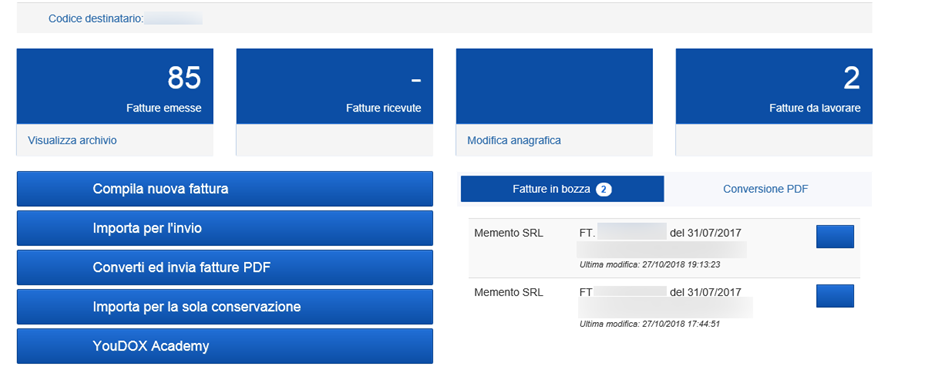
Opens the preservation portal based on the credentials configured in the related setup fields; through the portal it is possible to consult and verify the history of the communications performed.
Sending Configuration
The Sending Configuration action group opens the standard pages of countries, VAT registers and VAT business posting groups, where to configure the parameters that determine which documents are sent. The details are described in the Standard data setup page.
Mapping
The Mapping action group allows configuring the mapping values of payment terms, payment methods and withholding codes:
Set Payment Terms and Set Payment Methods: create the default mapping values and open the related configuration page (see the Standard data setup page).
Set Withholding Codes: opens the withholding mapping page, described in the Vendor mapping page.
Vendor
The Vendor action group allows configuring the mapping rules for the automatic creation of purchase documents: Setup Vendor Groups, Setup Vendor Mappings and Setup Vendor Mapping Confidence. The details are described in the Vendor mapping page.
Stylesheets
The Upload Style Sheet and Upload Style Sheet Assosoftware actions allow uploading the XSL stylesheets used for the visualization and print of the electronic documents.
Create Document Formats
Creates the export formats of the electronic documents to be assigned to the fields of the Formats tab.
Text Trasliteration
Allows configuring the automatic conversion of some characters, commonly used but not valid in the electronic invoice format, into allowed characters. The assisted setup creates some default conversions, such as ü into u.