Sales
The sales process consists of the following steps:
Posting of the sales documents (invoices and credit memos) in the usual way. Based on the configurations, during posting the documents are marked for the sending to the SdI.
Sending of the documents to the intermediary's system, which manages their preservation and the sending to the SdI.
Management of the outcomes related to the status of the documents on the SdI.
The described activities can be executed automatically through the job queues or manually. It is initially recommended to send the documents to the external systems manually, and to activate the automatic procedures only after the configurations have been validated.
The automatic procedures dedicated to the sales process are the following (for the configuration see the Monitoring and automation page):
GETDOC: reads the issued invoices and credit memos and, for all the sendable documents, prepares the interface and staging entries generating the related XML files.
SENDDOC: sends the entries related to the previously prepared documents.
GETSTATUS: retrieves the report containing the list of the outcomes coming from the SdI.
Document preparation
The following additional header fields are available in the sales documents:
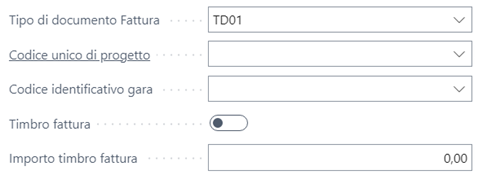
Customer Order No.: if populated with the number of the purchase order of the customer, it is exported in the DatiOrdineAcquisto\IDDocumento tag.
Fattura Project Code and Fattura Tender Code: used to populate the CUP and CIG data for the Public Administrations.
Fattura Stamp and Fattura Stamp Amount: used to export the data related to the virtual stamp duty, if any (see the Virtual stamp duty section).
Fattura Document Type: populated by default with TD01 for invoices and TD04 for credit memos, it can be modified manually before posting to manage the other applicable cases.
Job Convention No.: if populated, the information is inserted in the CodiceCommessaConvenzione tag, to indicate the job or convention code assigned by the Public Administration.
Note: when using a customer with the same VAT registration number as the company, during posting the document type having the self invoice flag in the Fattura Document Type List page is automatically set.
Document posting
The document posting process is unchanged compared to the standard management. However, formal checks on the presence of some mandatory setup data have been introduced during posting, returning a blocking error message when data necessary for electronic invoicing is missing:

The checks are performed only if the document is configured to be sent as an electronic document.
Updating the document after posting
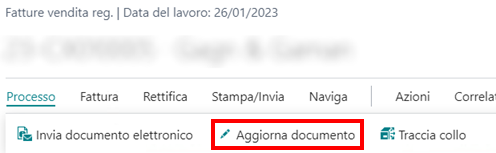
The posted sales documents can be updated, regarding the electronic invoicing information, until the sending to the SdI has been performed, through the Update Document action:

Sending to the Sistema di Interscambio
In the posted documents lists the Electronic Document Status field is available, reporting the sending status of the single document:
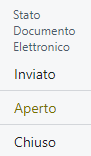
The possible statuses are:
Open: the document is waiting to be sent to the SdI.
Sent: the document has been sent to the SdI and an outcome is expected.
Error: errors occurred while sending the document, for example a rejection by the SdI.
Closed: the document has been correctly processed by the SdI.
In the document card a tab containing the summary of the electronic invoicing information is available:

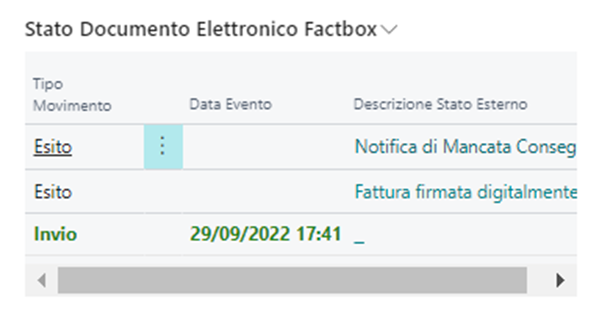
In the lists and in the cards a factbox containing the chronological history of the single document is also always available; in case of error, the factbox also reports the rejection message, making it easier to retrieve it without accessing the document card:
The posted invoices are then processed by the dedicated job queues (if activated): the documents matching the setup configurations and not previously sent are sent to the Sistema di Interscambio.
Each document processed for sending creates a dedicated record in the Electronic Document Staging page, and each performed sending generates a new dedicated Interface, where all the performed sendings and the related outcomes are recorded (see the Monitoring and automation page).
Manual sending
It is in any case possible to manually process the documents to be sent to the SdI, selecting the desired documents from the posted documents list or from the single card and launching the Send electronic document function:
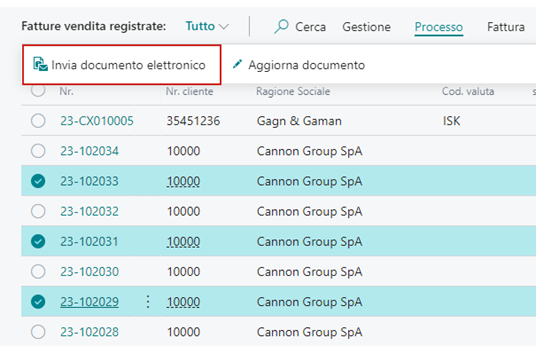
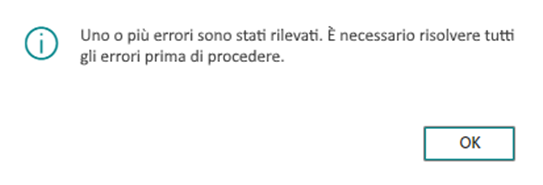
In this phase as well, checks on the formal correctness of the data to be sent and of the configurations are performed; if the checks are not passed, an error message is returned and a page is opened from which it is possible to consult the sending log and correct the data:
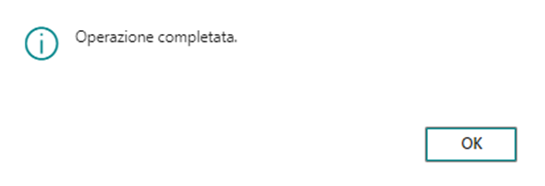
If no errors are found, the procedure returns a confirmation message of the file export:
The manual launch of the Send electronic document function performs the following operations in a single step:
Creation of an entry in the Electronic Document Staging table to prepare the document for sending.
Creation of a document sending interface for the actual sending of the document to the Sistema di Interscambio.
Export and print of the electronic document
From the posted documents, using the Export electronic document and Print electronic document actions, it is possible to:

Export the electronic document in XML format.
Print the electronic document applying the dedicated stylesheet.
Note: if the document has already been sent successfully (electronic document status Sent or Closed), the document actually sent to the SdI is exported; otherwise (status Open or Error) the file is generated on the fly.
Outcome management
If no errors occur during the communication with the document exchange system of the intermediary, the document is sent to the Sistema di Interscambio.
The SdI, after taking charge of the document, communicates the processing outcome, which can be:
Delivery Receipt: the document has been correctly delivered to the counterparty.
Rejection Notification: the SdI rejected the document.
Failed Delivery Notification: the SdI could not deliver the document to the counterparty.
For B2B invoicing the acceptance or rejection of the documents is not allowed, this option being reserved to Public Administrations only.
On average the SdI processes rejections and deliveries in about 2 hours from the sending, while the failed delivery notifications follow the timing defined by the ministerial specifications.
Delivery Receipt
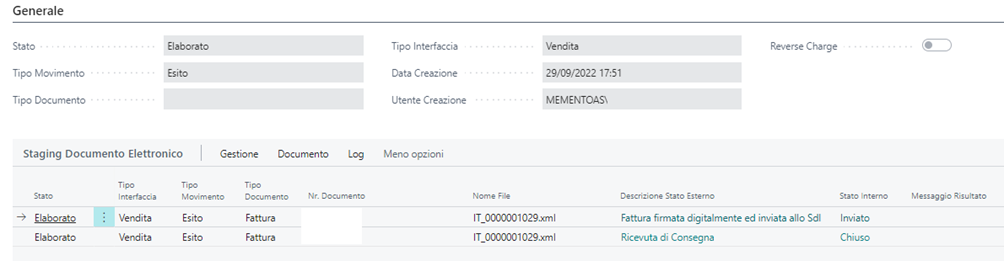
In the Electronic Document Staging page the status changes are saved in chronological order:
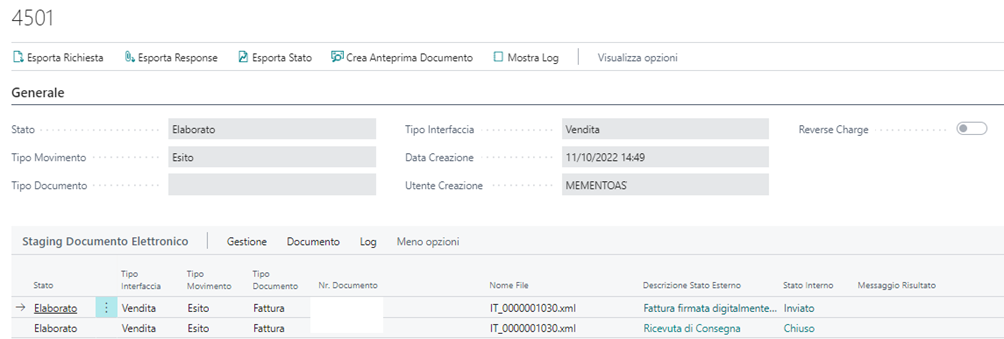
Through these pages it is possible to consult the log of the performed sendings and view the related outcomes.
On the single document the status is updated to Closed and the status change history can be viewed in the dedicated factbox:
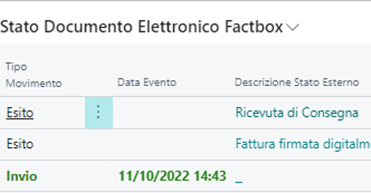
The document and the related outcome can also be viewed within the portal:

The process can then be considered completed, since all the steps have been performed successfully.
Rejection Notification
The document is set to Error status and becomes visible in the dedicated cues of the dashboard. The documents in this status are not further processed by the automatic procedures: it is necessary to verify the cause of the rejection, correct the errors and manually resend the document, as described in the Troubleshooting page.
Failed Delivery Notification
In this case the file has been correctly sent to the Sistema di Interscambio, but it was not possible to deliver the document to the customer:

The document is in any case correctly processed on the SdI. In the Electronic Document Staging page it is optionally possible to mark the documents for which the customer has been notified through external channels, using the dedicated Set Processed Missing Notification action, to keep track of the documents for which the customer still needs to be notified.
Virtual stamp duty
The standard management of the virtual stamp duty on electronic invoices consists in populating, on the single document, the Fattura Stamp and Fattura Stamp Amount fields, to indicate respectively the application of the stamp duty and its amount.

For the exemptions subject to virtual stamp duty it is also possible to automatically trigger the population of the fields, according to the following logic:
- In the VAT Posting Setup page, for the combinations of VAT business posting group and VAT product posting group for which the stamp duty must be triggered, enable the El. Document Stamp Duty flag:
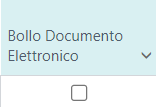
During the release of the document, the system checks whether a combination with the flag enabled is present on the lines and whether the document total is higher than the minimum amount configured in the Stamp Duty Minimum Amount field of the Electronic Document Setup (e.g. 77.47 euro).
If so, the Fattura Stamp and Fattura Stamp Amount fields of the document are populated, reporting in the amount the one configured in the Stamp Duty Amount setup field (e.g. 2 euro).
In the Electronic Document Setup it is also optionally possible to populate the Stamp Duty Description field, which is reported in the causale of the XML sent to the SdI (e.g. "Imposta di bollo assolta in modo virtuale ai sensi dell'articolo 15 del d.p.r. 642/1972 e del DM 17/06/2014").
In general, the electronic invoices reporting "Yes" in the virtual stamp duty field (based on the Fattura Stamp field of the document) are automatically included in the dedicated section of the Fatture e Corrispettivi portal of the Italian Revenue Agency.
Additional management data
To include additional data in the invoice, referred to a specific line (for example information useful for administrative or management purposes), it is possible to report this data in the AltriDatiGestionali section of the XML file sent to the SdI.
To manage the insertion of this additional information, the El. Doc. Additional Data column is available on the lines of the sales documents (orders, invoices and credit memos):

Once a line has been entered on the document (for example item or G/L account), clicking on the El. Doc. Additional Data column opens the page from which it is possible to add one or more additional management data entries using the New action:
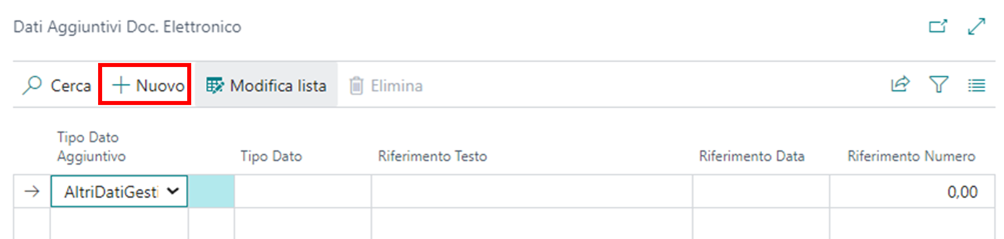
Additional Data Type: value "AltriDatiGestionali".
Data Type: code identifying the type of information (for example "NUM SCONTR" for the receipt reference).
Text Reference: alphanumeric value referred to the type of information of the data type (for example the alphanumeric identifier of the receipt).
Date Reference: date referred to the type of information of the data type.
Number Reference: numeric value referred to the type of information of the data type (for example the progressive number of the receipt).
Invoices to Amazon
To ensure that the SdI invoices are correctly formatted according to the criteria shared by Amazon with its vendors, in addition to the fields normally managed for the XML file, attention should be paid to the following elements:
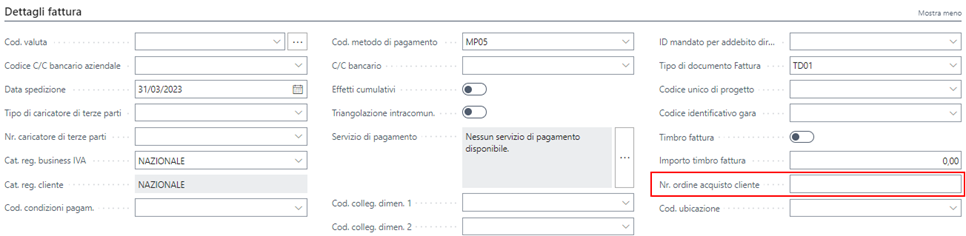
Purchase order number (PO): to include this information in the XML file, in the IdDocumento tag, it is necessary to populate the Customer Purchase Order No. field in the document header.
Product code type: to include this information in the XML file, in the CodiceTipo tag, it is necessary to:
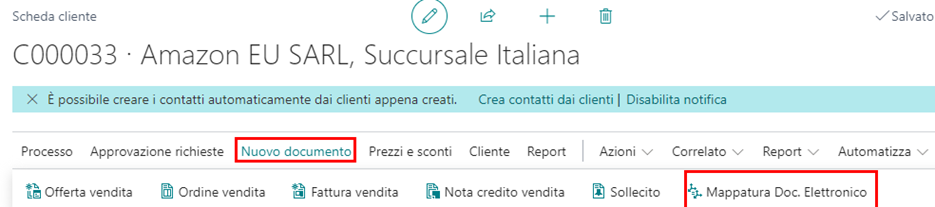
Access the Amazon customer card.
Click on the El. Doc. Mappings action.
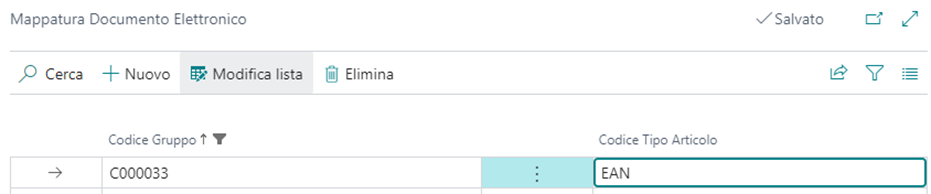
From the page that opens, indicate the item type code to be reported in the XML:
If credit memos towards Amazon need to be issued, in addition to the above it is necessary to:
Link the credit memo to the related invoice during posting, so that the invoice number is exported in the FattureCollegate tag.
Optionally enter the return id provided by Amazon in the additional line data, so that it is exported in the RiferimentoAmministrazione field of the single line.
Fiscal representative
If the customer is a foreign party with a fiscal representative in Italy, it is possible to manage the export by configuring in the customer card the link with the fiscal representative in the following fields, for example creating a dedicated contact with the data of the representative:

The customer data must in any case be entered with the correct foreign references. This way, the generated electronic document will contain the dedicated section related to the fiscal representative.
Declarations of intent
If a VAT exemption is configured for the customer, managed through the dedicated standard functionalities, the information is exported in the XML through the AltriDatiGestionali section, with the details of the number and date of the exemption:

Prepayment invoices
Standard Business Central prepayment invoices, issued from the sales order through the prepayment percentage, are handled automatically: on posting, the document enters the sending flow with document type TD02 (advance on invoice). Prepayment credit memos, if any, are sent with type TD04.