Import
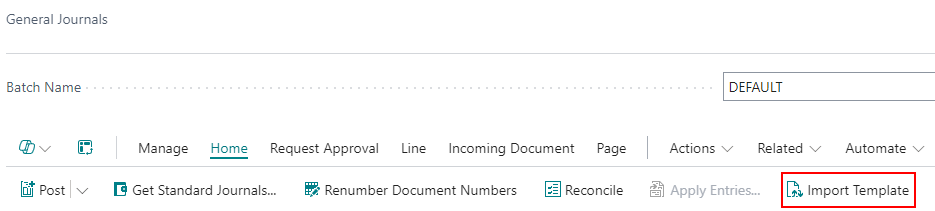
In the pages that have import template configured, a new action automatically appears that allows you to initiate the import.
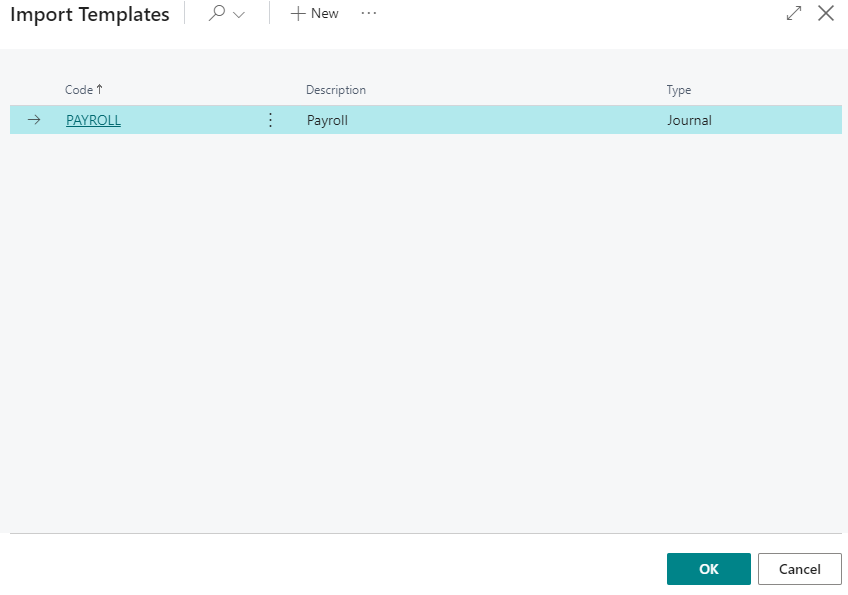
Next, you need to select the template from those available to the user for the specific page.
You can then select the file to import, in the format available for the specific template.
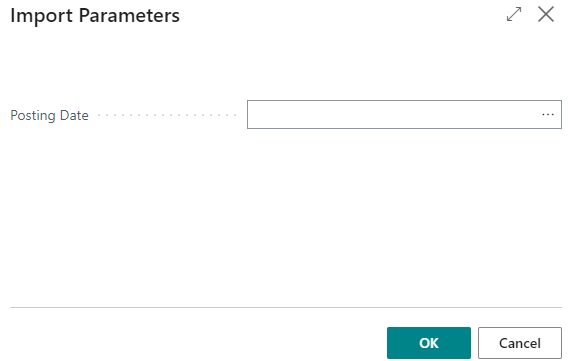
If variable import parameters are specified for the template, you can specify them at this stage.
Any validation errors will be shown.

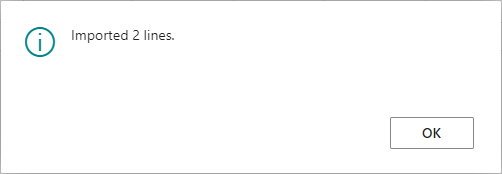
Upon completion of the import, the result of the operation will be displayed with details of the created lines or documents.
File formats
The Format of the template decides how the file is read: Excel, CSV, fixed length, JSON and XML.
With Excel, CSV and fixed-length files, every row of the file becomes a journal line, a document line or a master data record. An Excel workbook is read one sheet at a time, chosen when the import starts; with Import All Sheets on the template every sheet is imported in one run (see Templates Management).
JSON and XML
JSON and XML files have nodes instead of rows, so the template needs:
- Record Node Path: the repeating node that holds one record, that is one journal line, one master data record or one whole document. For JSON it is the path from the root,
$.orders, or$when the file itself is the list. For XML it is the path from the document,/Orders/Order. - Line Node Path, for document templates only: the node that holds one document line, relative to the record node:
linesfor JSON,Lines/Linefor XML. Leave it empty when the records have no lines. - On the mapping lines, the Path of every value instead of the column number, relative to its node:
itemNoorcustomer.nofor JSON,ItemNo,Item/Codeor@nofor an attribute in XML. Header values are read from the record node, line values from the line node.
Read Structure from File and Suggest with Copilot fill all of this from a sample file. Everything else works as with the other formats: new document indicator, formats, mapping rules, row filters, import parameters and ZIP archives. XML names are matched without namespace prefixes; wildcards and filters in the paths are not supported.
Physical inventory
A template on the Phys. Inventory Journal page with Write Mode = Update writes the counted quantities into the lines created by Calculate Inventory:
- Run Calculate Inventory on the batch, then import the count file.
- Lines are matched by item, plus variant, location and bin when mapped; the count goes to Qty. (Phys. Inventory).
- Rows without a calculated line, ambiguous rows and repeated items are reported before anything is written.
Master data templates
Templates of type Master Data create and update customers, vendors and items. Start the import with Import Template on the Customer, Vendor or Item list, or with Import Data on the templates list.

Write Mode
Records are recognised by their number (No.). Insert only creates records, Update only updates existing ones, Insert or Update does both, so the same file can be imported again. Rows that break the rule are reported by the check step. Without No. in the file, the number series assigns the number.
Related records
The same row can carry the records that belong to the master record:
| Master record | Related records |
|---|---|
| Customer | Customer Bank Account, Ship-to Address, Default Dimension |
| Vendor | Vendor Bank Account, Default Dimension |
| Item | Item Reference, Item Unit of Measure, Default Dimension, Item Attribute Value Mapping |
Use Add Related Record in the Lines part: choose the table (and the dimension, attribute or reference type when asked), tick the fields to import, and the mapping lines are created; then fill in their Column Id. The Applies To column shows which record each line belongs to. A related record whose columns are all empty on a row is skipped.
Item attributes are matched by name, and a new attribute value is created when it does not exist. Dimensions of master data are imported as Default Dimension related records.
Price lists
A master data template on the Price List Line table, created from the Sales Price Lists or Purchase Price Lists page, fills an existing price list:
- Price List Code selects the list, usually as an import parameter, and must be the first line in Application Order.
- The list must accept new lines: in status Draft, or active with editing of active prices allowed.
- Existing prices are recognised by their content (product, unit of measure, currency, minimum quantity, starting date): a new starting date is a new price.
- Prices are never deleted. The action Replace Prices closes the prices replaced by the file with an ending date; Replace Price List also closes the prices of the list that are not in the file.
- Imported prices are drafts; the action Activate Prices activates them at the end of the import.
Item tracking
Sales and purchase lines are imported with their lot, serial and package numbers: add an Item Tracking related record with Add Related Record in the Lines part and map the tracking columns. Item journals need no configuration, the tracking fields are ordinary fields of the journal line. See the FAQ for files with one row per lot or serial number.
Bank statements
The CSV or Excel file exported by the bank is imported into a payment reconciliation journal, with a template of type Journal on the Payment Reconciliation Journals page. Nothing has to be prepared: the import creates the journal for the bank account, or adds the lines to the open one, and sets its statement ending balance. Then review the applications and post, as usual.

- Bank account: from a column of the file, when the file carries the bank account code (a file with several accounts produces one journal per account), or from an import parameter on Bank Account No., asked when the import starts. Rows with a missing or unknown bank account are reported before anything is written.
- Fields to map: Transaction Date, Statement Amount and Description, plus Value Date, Payment Reference, Related-Party Name, Transaction ID and the other fields of the line when the file has them.
- Automatic application: add the action Apply the imported payments automatically to the template to run the standard matching at the end of the import. Without it, apply the payments from the journal page.
- The Statement Ending Balance of the journal is calculated from the balance of the bank account and the imported lines, and stays editable.
External item numbers and barcodes
When the file carries the customer's or vendor's item number or a barcode, map the column to Item Reference No. instead of No., on sales lines, purchase lines and item journal lines: Business Central finds the item through its item references and fills No., description and unit of measure. The optional Item Reference Type (Customer, Vendor, Bar Code) narrows the search. A code without a reference is reported by the check step.