Examples
The app includes a set of ready import templates. They can be used as they are to try out the app on the demo company Cronus, or copied and adapted as a starting point for a new configuration.
The Template Examples page
The examples are listed on the Template Examples page, opened with the Examples action of the Import Templates list (a notification also points to it when no template exists yet). For each example the page shows the type, the target page, the format, whether a sample file is available and whether the template is already installed, with the following actions:
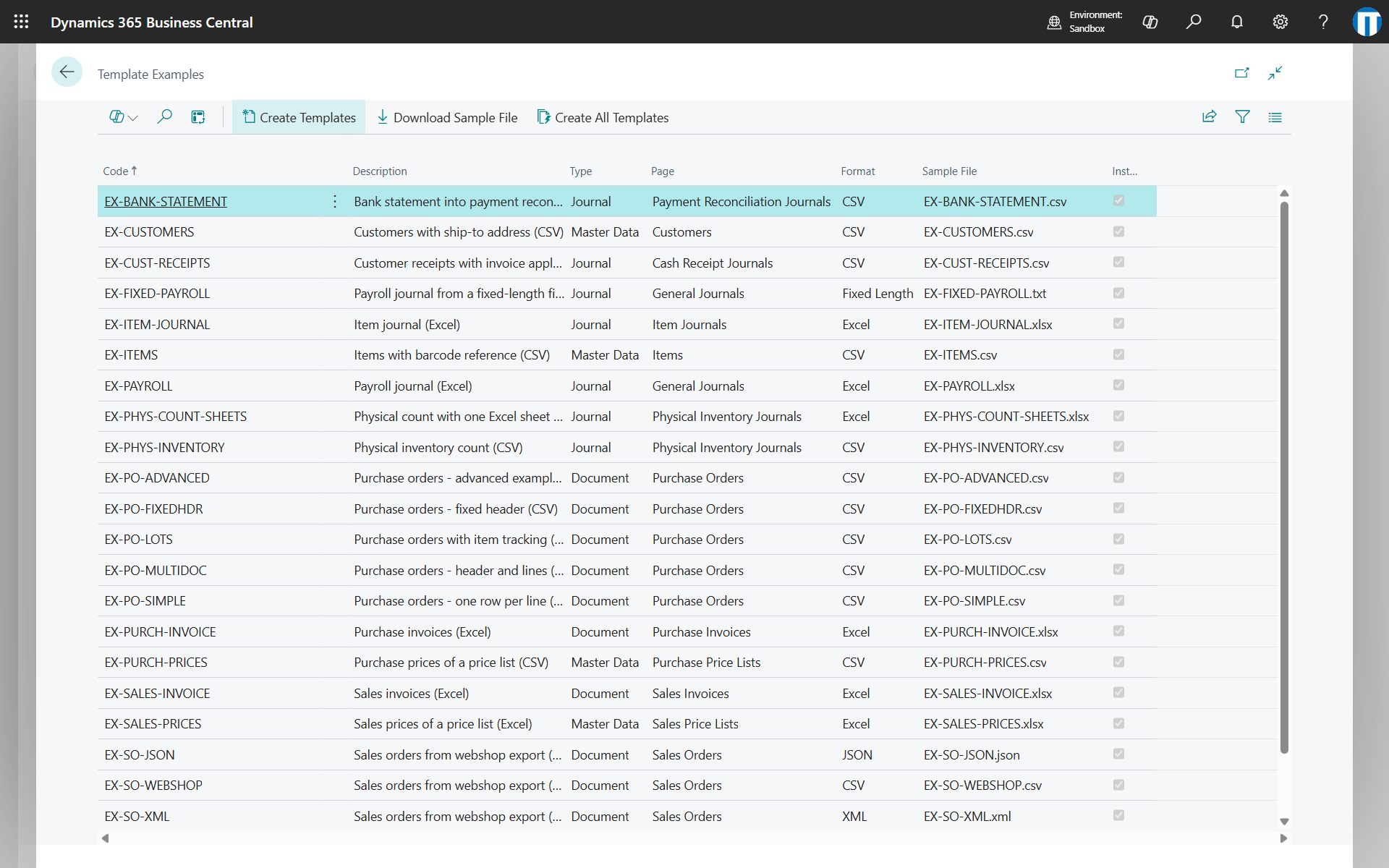
- Create Templates: creates the selected examples (one or more rows) after a confirmation; if a template with the same code already exists, it asks whether to replace it.
- Download Sample File: downloads the file that the example is designed for, ready to be imported.
- Create All Templates: creates all the examples at once.
| Template | Type | Format | Imported into | Shows |
|---|---|---|---|---|
| EX-ITEM-JOURNAL | Journal | Excel | Item Journal | Positive adjustments with lot numbers; entry type as default value |
| EX-PAYROLL | Journal | Excel | General Journal | Payroll lines on G/L accounts; account type and document no. as default values |
| EX-PURCH-INVOICE | Document | Excel | Purchase Invoices | One invoice per vendor from an Excel print with a title row (headers on row 5); the G/L account of the lines is a fixed default value |
| EX-SALES-INVOICE | Document | Excel | Sales Invoices | Item lines from an Excel print; the customer is asked as an import parameter when the import starts |
| EX-PO-SIMPLE | Document | CSV | Purchase Orders | One row per order line |
| EX-PO-MULTIDOC | Document | CSV | Purchase Orders | Header and lines on the same row |
| EX-PO-FIXEDHDR | Document | CSV | Purchase Orders | Header on fixed rows |
| EX-PO-ADVANCED | Document | CSV | Purchase Orders | Row filters, mapping rules, import parameters, template actions |
| EX-PO-LOTS | Document | CSV | Purchase Orders | Lot numbers and expiration dates on the lines; action Group identical rows into one line |
| EX-SO-WEBSHOP | Document | CSV | Sales Orders | Orders exported by a webshop: external order no. as document separator, order date and item lines |
| EX-SO-JSON | Document | JSON | Sales Orders | The same webshop orders as a JSON export: record node $.orders, line node lines, paths instead of column numbers |
| EX-SO-XML | Document | XML | Sales Orders | The same orders as an XML export: record node /Orders/Order, line node Lines/Line, the order number read from the @no attribute |
| EX-PHYS-INVENTORY | Journal | CSV | Phys. Inventory Journal | Counted quantities written into the lines created by Calculate Inventory; write mode Update |
| EX-PHYS-COUNT-SHEETS | Journal | Excel | Phys. Inventory Journal | The same count with one sheet per counting team: Import All Sheets, and the sheet name written into Document No. with Sheet Name as Value |
| EX-VENDOR-PAYMENTS | Journal | CSV | Payment Journal | Vendor payments applied to invoices (Applies-to Doc. No.); the bank account is asked as import parameter |
| EX-CUST-RECEIPTS | Journal | CSV | Cash Receipt Journal | Customer receipts applied to invoices; same layout as the vendor payments, with negative amounts |
| EX-FIXED-PAYROLL | Journal | Fixed length | General Journal | Positional text file without headers: date (8), account (10), amount (12), description (30); spaces trimmed |
| EX-BANK-STATEMENT | Journal | CSV | Payment Reconciliation Journals | Bank statement lines that create or extend the journal; the bank account is asked as an import parameter |
| EX-CUSTOMERS | Master Data | CSV | Customer List | Customers with a ship-to address on the same row; write mode Insert or Update |
| EX-VENDORS | Master Data | CSV | Vendor List | Vendors with a bank account on the same row |
| EX-ITEMS | Master Data | CSV | Item List | Items with a barcode item reference; the base unit of measure is asked as an import parameter |
| EX-SALES-PRICES | Master Data | Excel | Sales Price Lists | Sales prices of an existing price list, chosen as an import parameter; action Replace Prices |
| EX-PURCH-PRICES | Master Data | CSV | Purchase Price Lists | Purchase prices and line discounts sent by a vendor; action Replace Price List |
The example templates refer to the data of the demo company Cronus, so they may need additional configurations based on the data available in the test company.
Sample files
Every example comes with a sample file that can be imported as it is: select Import Template on the target page, choose the template and then the file. The files can be downloaded from the Template Examples page or from here.
| File | Template |
|---|---|
| EX-ITEM-JOURNAL.xlsx | EX-ITEM-JOURNAL |
| EX-PAYROLL.xlsx | EX-PAYROLL |
| EX-PURCH-INVOICE.xlsx | EX-PURCH-INVOICE |
| EX-SALES-INVOICE.xlsx | EX-SALES-INVOICE |
| EX-PO-LOTS.csv | EX-PO-LOTS |
| EX-SO-WEBSHOP.csv | EX-SO-WEBSHOP |
| EX-SO-JSON.json | EX-SO-JSON |
| EX-SO-XML.xml | EX-SO-XML |
| EX-PHYS-INVENTORY.csv | EX-PHYS-INVENTORY |
| EX-PHYS-COUNT-SHEETS.xlsx | EX-PHYS-COUNT-SHEETS |
| EX-VENDOR-PAYMENTS.csv | EX-VENDOR-PAYMENTS |
| EX-CUST-RECEIPTS.csv | EX-CUST-RECEIPTS |
| EX-FIXED-PAYROLL.txt | EX-FIXED-PAYROLL |
| EX-BANK-STATEMENT.csv | EX-BANK-STATEMENT |
| EX-CUSTOMERS.csv | EX-CUSTOMERS |
| EX-VENDORS.csv | EX-VENDORS |
| EX-ITEMS.csv | EX-ITEMS |
| EX-SALES-PRICES.xlsx | EX-SALES-PRICES |
| EX-PURCH-PRICES.csv | EX-PURCH-PRICES |
Notes on these examples:
- EX-PHYS-INVENTORY and EX-PHYS-COUNT-SHEETS: run Calculate Inventory on the batch first; the counts are written into the calculated lines. The second file has one sheet per counting team, imported with Import All Sheets, and the sheet name goes to Document No..
- EX-PO-LOTS needs a lot-tracked item: if the item of the sample file is not lot-tracked in your company, replace it. The action Group identical rows into one line merges the two lots of the first order into one line with two tracking entries.
- EX-SO-JSON and EX-SO-XML are the orders of EX-SO-WEBSHOP as nested nodes; in the XML file the order number is the
@noattribute. - EX-VENDOR-PAYMENTS and EX-CUST-RECEIPTS apply the lines to invoices: replace the Invoice No. column with posted invoice numbers of your company.
- EX-BANK-STATEMENT asks for the bank account when the import starts. To have the payments applied, add the action Apply the imported payments automatically to the template; for amounts sent in cents, add a Multiply transformation rule with multiplier 0.01 to the amount line.
- EX-CUSTOMERS, EX-VENDORS and EX-ITEMS create the records EX-C-0001, EX-V-0001, EX-I-0001 and so on; import the file a second time to see them updated. EX-ITEMS asks for the base unit of measure, because its codes depend on the localization.
- EX-SALES-PRICES and EX-PURCH-PRICES ask for the price list, which must exist and accept new lines (status Draft, or active with editing of active prices allowed). Fill in the unit of measure column of the sales file to price a specific unit of measure.
The purchase order sample files show different ways of describing documents in a flat file.
| File | Template | Layout | Result |
|---|---|---|---|
| PurchaseOrder-Simple.csv | EX-PO-SIMPLE | One row per order line; the orders are separated by the change of value of the Buy-from Vendor No. column. | 3 orders, of two, two and one line |
| PurchaseOrder-MultiDocument.csv | EX-PO-MULTIDOC | Header and line data on the same row; the orders are separated by the Vendor Order No. column, so the same vendor can appear in more than one order. | 3 orders, of three, two and one line |
| PurchaseOrder-FixedHeader.csv | EX-PO-FIXEDHDR | One order per file, with the header data on fixed rows at the top and the lines below. | 1 order of three lines |
| PurchaseOrder-Advanced.csv | EX-PO-ADVANCED | The same layout as the previous one, used to show the following features: row filters, mapping rules, import parameters, template actions | 2 released orders, of two lines each |
A few details of these files, useful when another system has to produce them:
- Semicolon separated, UTF-8, column names on the first row; dates as yyyy-MM-dd and decimals with the point, converted by Data Format and Data Formatting Culture.
- The file must be sorted by the column that separates the documents: a value that appears again further down starts a new document. Header fields are read from the first row of each document.
- Several files can be imported at once as a .zip archive.