Banking Central
The Banking Central app connects Business Central to your banks and downloads bank transactions directly into the standard reconciliation pages, without downloading files or logging in to bank portals.
The connection is established securely through Open Banking, in accordance with the European PSD2 regulation. Over 2,000 banks in 31 countries in Europe and the United Kingdom are supported: see the supported banks on the Banking Central website.
Transactions land in the standard Payment Reconciliation Journals or Bank Account Reconciliations, so all the standard reconciliation features can be used. On top of the standard, the app recognizes the transactions received from the bank and proposes the account to post them to.
Installation and activation
Banking Central can be installed directly from the official AppSource marketplace.

After installation, follow the assisted setup to activate the license and complete the basic configuration.
The app requires an active license, which allows you to connect up to 3 bank accounts in a single Business Central tenant. Additional bank connections can be activated if needed. A 30-day free trial is available with all features enabled.
More details in the license section.
Assisted setup
The assisted setup starts automatically after installation and can be launched again from the Banking Central Setup page with the Assisted Setup action.
The setup has three steps:
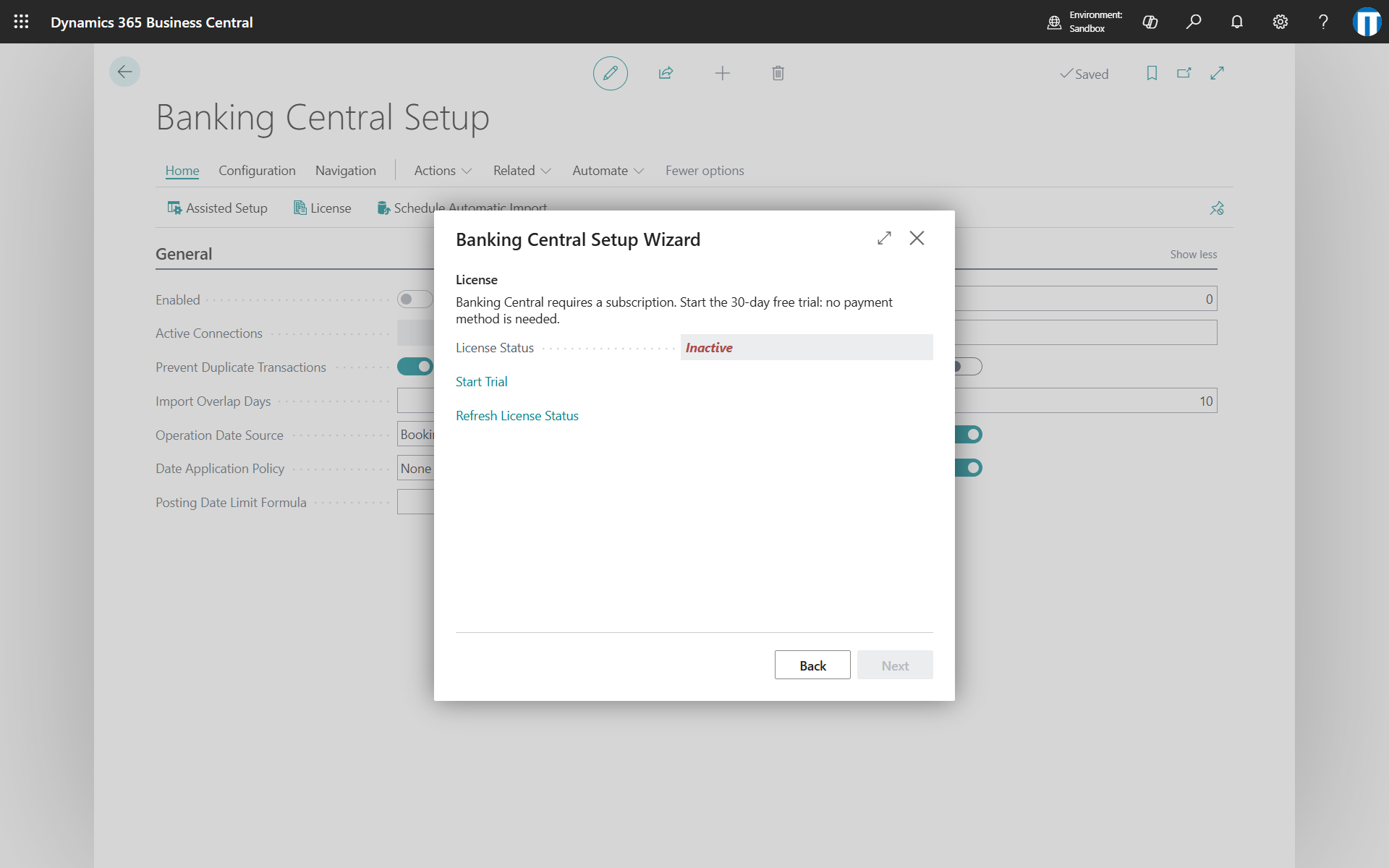
- License: start the free trial, confirming the company data. No payment method is required. You cannot continue until the license is active.
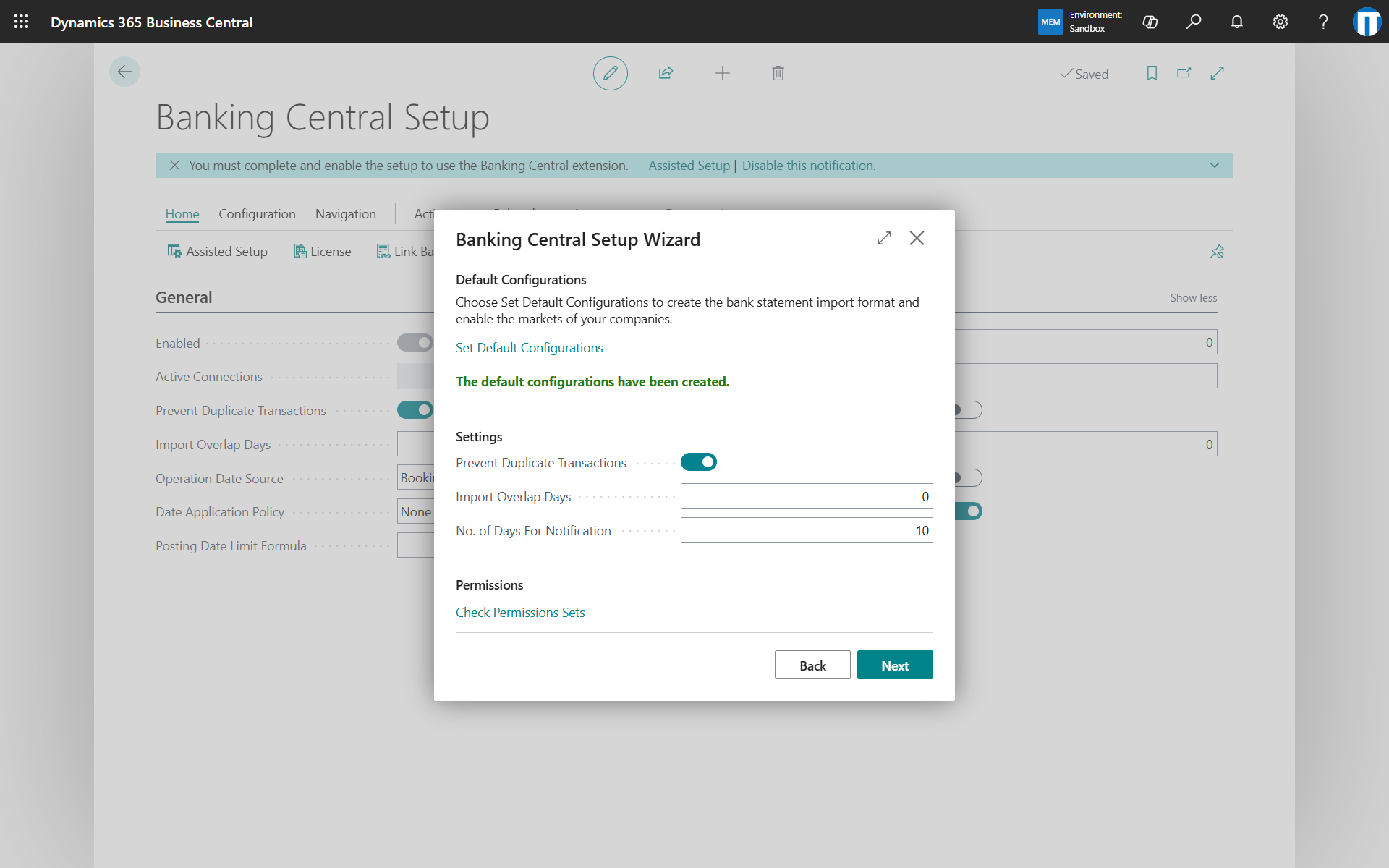
- Default configurations: create the default settings by confirming Set Default Configurations, then review the main options (Prevent Duplicate Transactions, Import Overlap Days, No. of Days For Notification) and check the permission sets.
- Link bank accounts: link your bank accounts now, or later from the bank account card, as described in bank connections.
Setup
The Banking Central Setup page contains all the app settings. The main ones:
- Prevent Duplicate Transactions: transactions already downloaded, identified by the id assigned by the bank, are discarded.
- Import Overlap Days: number of days before the last import that are downloaded again, for banks that book transactions late. Requires Prevent Duplicate Transactions.
- Operation Date Source: whether the booking date or the value date becomes the transaction date of the lines and the date of the statements. Booking date is the default; it can be changed per bank account.
- Date Application Policy and Posting Date Limit Formula: excludes from the automatic matching the customer, vendor and employee entries posted later than the given period after the transaction date.
- Bank Entry Days Tolerance: number of days around the transaction date used to match existing bank ledger entries.
- Description Template: the text used as description of the journal lines, see transaction codes.
- Enable Posting Actions: shows the Post Application and Post Difference actions in the payment reconciliation journal, see bank transactions.
- No. of Days For Notification: how many days before the expiration a bank connection is reported as expiring.
- Enable Activity Log: keeps a log of the operations performed with the banks.
- Test Mode: allows connecting to a test bank with fictitious transactions.
From the same page you reach the bank account links, the bank connections, the statements, the discovery, the transaction codes and the license.
Role center
The role centers of the accounting profiles contain a Banking Central section with:
- Bank Account Reconciliations: reconciliations not yet posted.
- Expiring Bank Connections: connections expiring within the days set in the setup, or already expired.
- Bank Activity Errors: errors logged today, if the activity log is enabled.
The Run Import Now action starts the import of transactions for all the bank accounts with automatic import enabled.
Permission sets
Three permission sets are available:
- Banking Central read only: access to the app pages in read-only mode.
- Banking Central users: use of all the app functions without changing the configuration.
- All Banking Central permissions: all functions and configuration, including the license.
Assign the permission sets to the users right after installing the app, otherwise errors related to missing permissions may occur.
Support
For any information or support request, please write to [email protected].